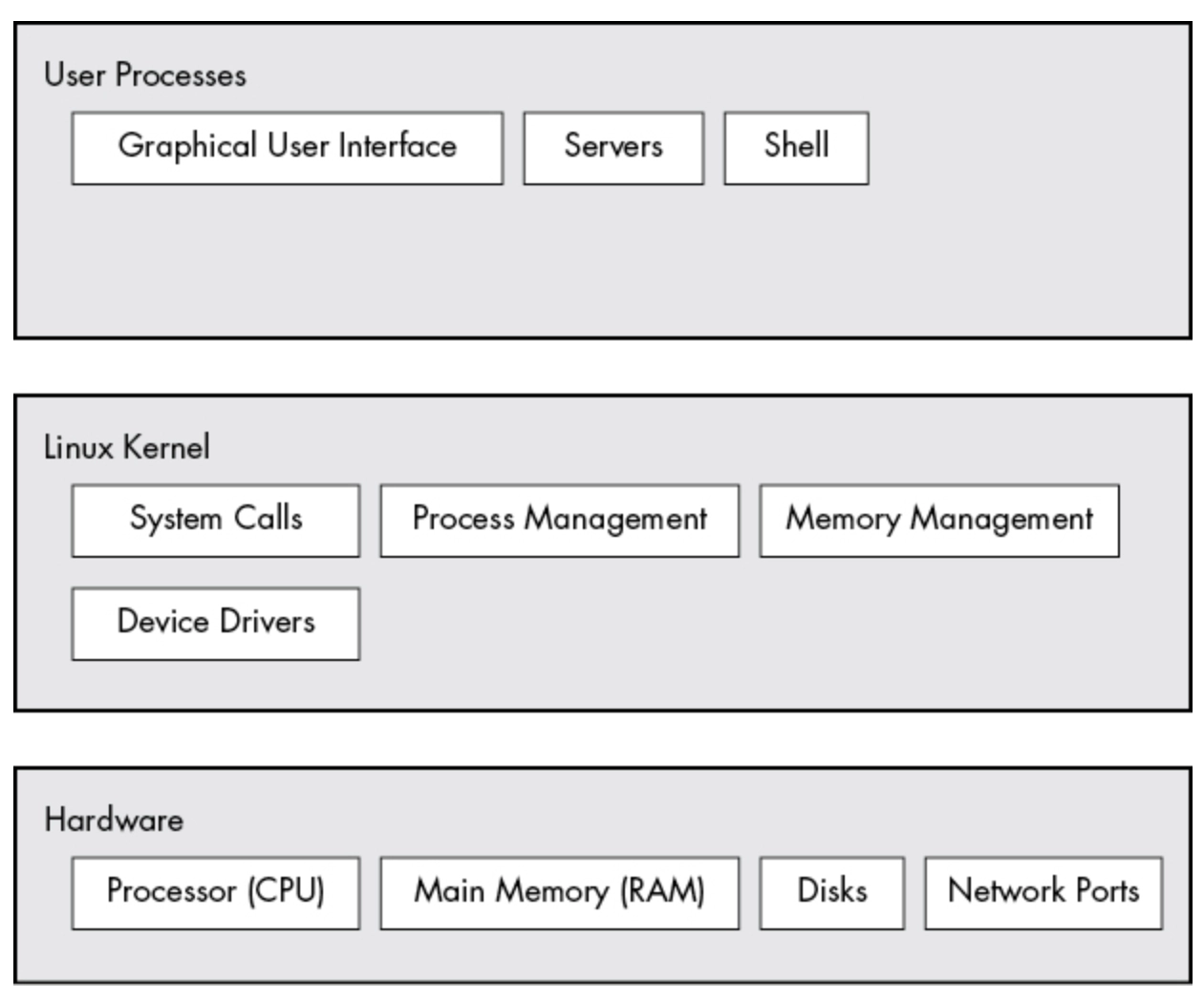
Figure 0: General Linux system organization
- The kernel runs in kernel mode, user processes run in user mode - Code running in kernel mode has unrestricted access to Processor (CPU) and Main Memory (RAM) > This is powerful but dangerous privilege that allows kernel to easily corrupt and crash the entire system. - User mode restricts access to a (usually quite small) subset of memory and safe CPU operations - User space refers to the part of main memory that user processes can access > If a process makes a mistake and crashes, the consequences are limit and can be cleared up by the kernel > > The Linux kernel can run kernel threads, which look much like processes but have access to kernel space. Example: `kthreadd` and `kblockd` > ### 1.2 Hardware: understand main memory It’s often easier to use abstract terms when talking about states. Instead of describing a state using bits, you describe something has done or is doing at the moment. - The process is waiting for input - The process is performing Stage 2 of its startup > > > > “Because it’s common to refer to the state in abstract terms rather than to the actual bits, the term image refers to a particular physical arrangement of bits.” > ### 1.3 The kernel The kernel is in charge of managing tasks in four general system areas: - Processes: The kernel responsible for determining which processes are allowed to use the CPU - Memory: The kernel needs to keep track all memory - what is currently allocated to a particular process, what might be shared between processes, and what is free - Device drivers: The kernel acts as an interface between hardware (e.g., disk) and processes. It’s usually the kernel’s jobs to operate the hardware - System calls and support: Processes normally use system calls to communicate with the kernel #### 1.3.1 Process Management You might have a web browser and a spreadsheet open on a desktop computer at them same time, but things are not they appear: the processes behind these applications typically do not run at exactly the same time. Consider with a one-core CPU. Many processes may able to use the CPU, but only one process can use the CPU at any given time. Each process uses the CPU for another fraction of a second, the pause, then another process takes a turn, and so on. The kernel is responsible for context switching. To understand, this is situation which process is running in user mode but its time slice is up: 1. The CPU interrupts the current process based on an internal time, switches into kernel mode, and hands control back to the kernel 2. The kernel records the current state of CPU and memory, which is essential to resuming the process that was just interrupted. 3. The kernel performs any tasks that might have come up during the preceding time slice 4. The kernel is now ready to let another process run. The kernel analyzes the list of processes that are ready to run and choose one. 5. The kernel prepares the memory for this new process and then prepare the CPU 6. The kernel tells CPU how long the time slice for new process will last. 7. The kernel switches the CPU into user mode and hands control of the CPU to the process > When the kernel run? It runs between process time slices during a context switch > Context Switching (The Bookmark) - **The Task:** Pausing one app to start another without losing progress. - **The Action:** Before swapping, the Kernel saves a "snapshot" (Context) of exactly where the app left off. When it’s that app's turn again, the Kernel "loads the bookmark" so it resumes instantly. #### 1.3.2 Memory Management The kernel must manage memory during a context switch: - The kernel must have its own private area in memory that user processes can’t access - Each user process needs it own section of memory, and can’t access the private memory of another process - User processes can share memory - Some memory in user processes can be read-only - The system can use memory than is physically present by using disk space as auxiliary #### 1.3.3 Device Drivers and Management The kernel’s role with devices is simple. A device can only accessible in kernel mode because improper access (user process asking to turn off the power) could crash the machine. #### 1.3.4 System Calls and Support There are several kind of kernel features available to user processes. For example system calls (syscalls) perform specific tasks that user process alone can not do well or at all (opening, reading, and writing files all involves syscalls) Two system calls: - `fork()` When a process calls it, the kernel creates a nearly identical copy of the process - `exec()` When a process calls `exec(program)` , the kernel loads and starts `program` , replacing the current process > Other than init, all new user processes on a Linux system start as a result of `fork()` , and most of the time, you also run `exec()` to start a new program instead of running a copy of an existing process. >
Figure 1: System calls
1. `shell`: When you open Terminal, one process names shell (bash, zsh) is running, waiting for a command 2. `fork()` : when you type `ls` , `shell` will not transform to `ls` . It calls `fork()` and will have `copy of shell` > Parent → the origin shell Child → a copy of shell → If the original `shell` transform to `ls` , when after you ran `ls` your terminal or shell will disappear. > 3. `exec(ls)` : The `copy of shell` does not know how to list file so it calls `exec(ls)` > Parent → still the shell Child → now running `ls` → The `ls` process runs, lists the files to your screen, then terminates (calls `exit` ) > 4. `wait()` : parent waits for child (calls `wait()` or `waitpid()`. This means shell pause, wait for the `ls` process to finish. When the `ls` exits, kernel notifies the shell, `wait()` return and shell resumes 5. Back to the shell prompt: `ls` is done, shell prints prompt again, ready for next command.
Figure 2: Just for fun