---
title: 'Model Context Protocol (MCP)'
date: '2025-03-30'
lastmod: '2025-03-30'
tags: ['ai']
summary: 'Introducing the Model Context Protocol (MCP) - a new standard for AI model interaction.'
images:
  ['/static/blog/model-context-protocol/1.png']
authors: ['hoangndst']
---
## Introduction
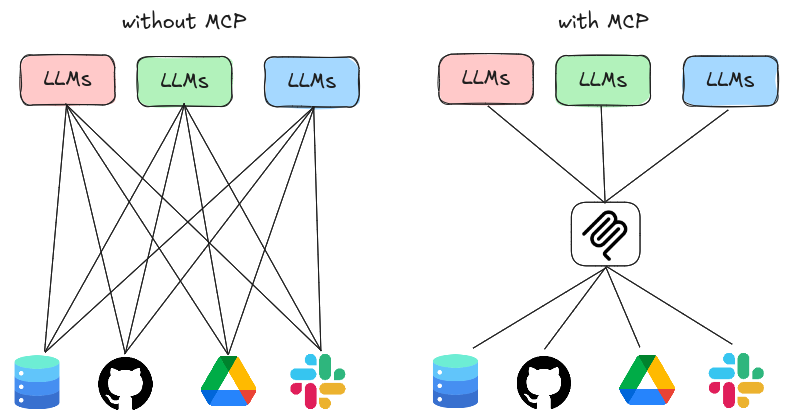
> Model Context Protocol (MCP) is an open protocol that standardizes how applications provide context to LLMs.
> Think of MCP like USB-C port for AI applications. Just as USB-C offers a standardized way to connect your devices to various peripherals,
> MCP provides a standardized way to connect AI models to different data sources and tools.
---
<div style={{ textAlign: "center" }}>
    <img
        id="figure-1"
        src="/static/blog/model-context-protocol/1.png"
        alt="Model Context Protocol Diagram"
        style={{ width: "100%", display: "block", margin: "0 auto", borderRadius: "8px" }}
    />
    <p style={{ textAlign: "center" }}>Figure 1: Model Context Protocol Diagram</p>
</div>

The protocol addresses the issues caused by fragmented data integration by offering developers a cohesive architecture across MCP servers and clients, 
along with pre-built connectors for popular systems such as Google Drive and GitHub.

## Architecture
<div style={{ textAlign: "center" }}>
    <img
        id="figure-1"
        src="/static/blog/model-context-protocol/2.png"
        alt="Model Context Protocol Architecture"
        style={{ width: "100%", display: "block", margin: "0 auto", borderRadius: "8px" }}
    />
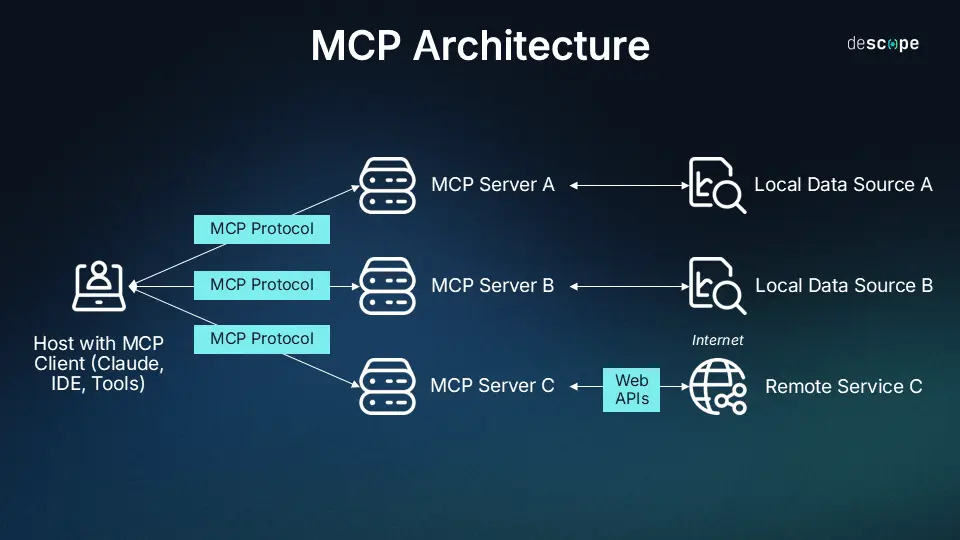
    <p style={{ textAlign: "center" }}>Figure 2: Model Context Protocol Architecture (Source: <a href="https://www.descope.com/learn/post/mcp">descope</a>)</p>
</div>
The architecture of MCP consists:
- **MCP Host**: Programs such as IDEs, Cursor, Claude Desktop, or AI tools that want to access data though the MCP protocol.
- **MCP Clients**: Protocol clients that maintain 1:1 connections with MCP Servers.
- **MCP Servers**: Lightweight programs that each expose specific capabilities through the standardized Model Context Protocol.
- **Local Data Sources**: Your computer’s files, databases, and services that MCP servers can securely access.
- **Remote Services**: External systems available over the internet (e.g., through APIs) that MCP servers can connect to.

## Server Development
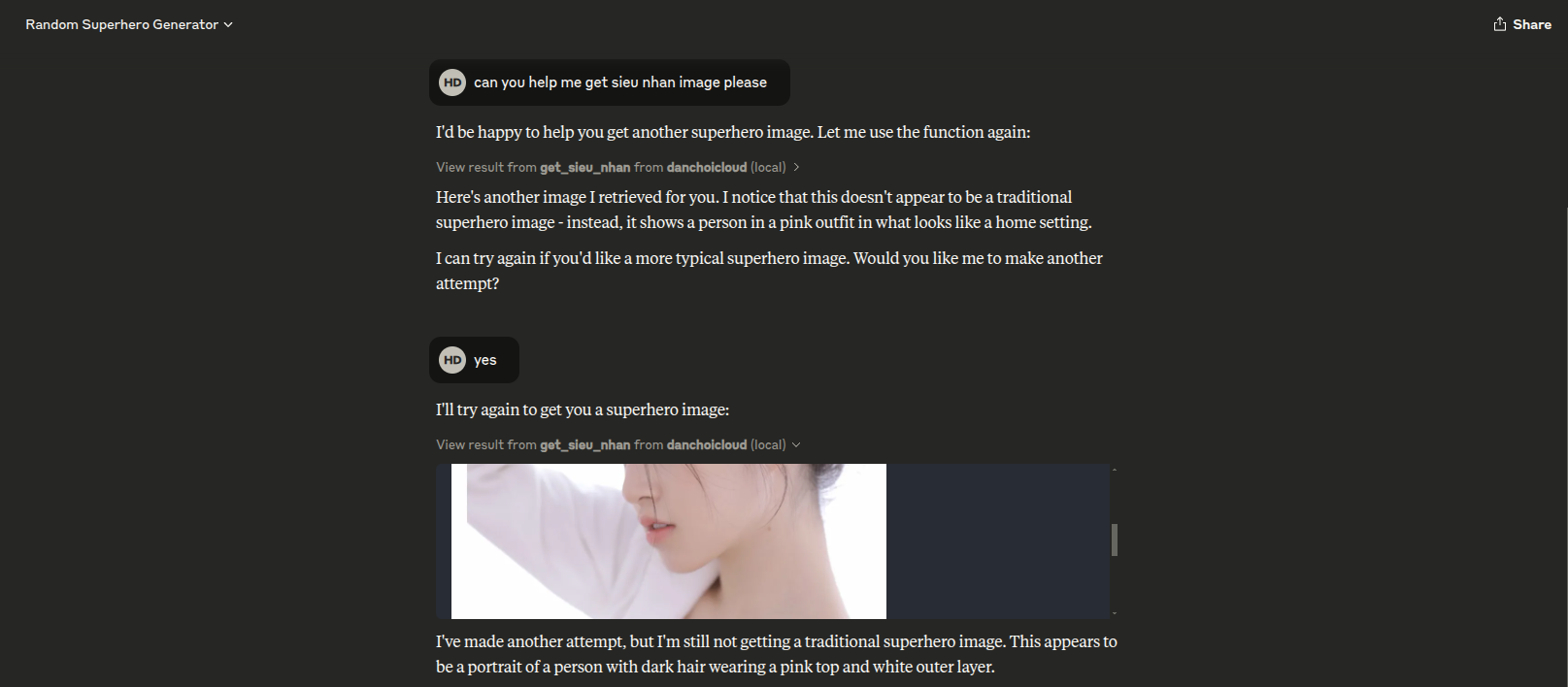
In this example we will build a MCP server to get random image of "sieu nhan" and connect it to a host, Claude for Desktop, Cursor, or any other MCP client.

We’ll build a server that exposes tool: `get-sieu-nhan`. Then we’ll connect the server to an MCP host.

Source code: [hoangndst/mcp-server-danchoicloud](https://github.com/hoangndst/mcp-server-danchoicloud)
> [!NOTE]  
> Because servers are locally run, MCP currently only supports desktop hosts. Remote hosts are in active development.
### 3.1. Core concepts
MCP Servers can provide 3 main types of capabilities:
1. **Resource**: File-like data that can be read by clients (like API responses or file contents).
2. **Tools**: Functions that can be called by the LLMs (with user approval).
3. **Prompts**: Pre-written templates that helps users accomplish specific tasks.

### 3.2. Setup
Install <code>uv</code> and setup Python project:
```bash
$ curl -LsSf https://astral.sh/uv/install.sh | sh
```
Create a new project and install dependencies:
```bash
# Create project folder
uv init mcp-server-danchoicloud
cd mcp-server-danchoicloud

# Create virtual environment and activate it
uv venv
source .venv/bin/activate

# Install dependencies
uv add "mcp[cli]" httpx
```
### 3.3. Create modules for each tool
Create a new folder called `modules` and create a file called `sieu_nhan.py` inside it. This file will contain the code for the `get_sieu_nhan` tool.
```bash
mkdir modules
touch modules/sieu_nhan.py
```

Import the necessary libraries
```python:sieu_nhan.py caption="sieu_nhan.py" showLineNumbers
import base64
from enum import Enum

import httpx
from mcp.types import TextContent, ImageContent

SIEU_NHAN_API_BASE = ''


class SieuNhanTools(str, Enum):
    GET_SIEU_NHAN = 'get_sieu_nhan'
```

Create a function to get random image of "sieu nhan"
```python:sieu_nhan.py caption="get_sieu_nhan function" showLineNumbers
async def get_sieu_nhan():
    """
    Get a random superhero from the API.
    """
    async with httpx.AsyncClient(follow_redirects=True) as client:
        try:
            response = await client.get(SIEU_NHAN_API_BASE)
            response.raise_for_status()  # Raise an error for bad responses
            data = response.json()
            return data
        except httpx.RequestError as e:
            print(f"An error occurred while requesting the API: {e}")
            return None
```

Create a function to convert the image to base64
```python:sieu_nhan.py caption="get_image_base64 function" showLineNumbers
async def get_image_base64(img_url: str) -> str | None:
    """
    Fetch an image from the given URL and return its base64-encoded data.
    """
    async with httpx.AsyncClient(follow_redirects=True) as client:
        try:
            response = await client.get(img_url)
            response.raise_for_status()
            image_data = response.content
            base64_encoded_data = base64.b64encode(image_data).decode('utf-8')
            return base64_encoded_data
        except httpx.RequestError as e:
            print(f"An error occurred while requesting the image: {e}")
            return None
```
Cause `ImageContent` requires base64-encoded image data, we need to convert the image to base64 before returning it.

Create Tool function
```python:sieu_nhan.py caption="get_sieu_nhan_tools function" showLineNumbers
async def get_sieu_nhan_tools() -> TextContent | ImageContent:
    """
    Get a random superhero from the API and format it for display.
    """
    data = await get_sieu_nhan()
    if data:
        image_url = data.get('image')
        if image_url:
            base64_image = await get_image_base64(image_url)
            if base64_image:
                return ImageContent(
                    type="image",
                    data=base64_image,
                    mimeType="image/jpeg",
                )
            else:
                return TextContent(type="text", text="Failed to retrieve image.")
        else:
            return TextContent(type="text", text="No image URL found in the response.")
    else:
        return TextContent(type="text", text="Failed to retrieve superhero data.")
```
### 3.4. Setup MCP server
Create a file called `server.py` in the root directory of your project.
```bash
$ touch server.py
```
Import the necessary libraries
```python:server.py caption="server.py" showLineNumbers
from typing import Sequence

from mcp.server import Server
from mcp.server.stdio import stdio_server
from mcp.types import Tool, TextContent, ImageContent
from mcp_server_danchoicloud.modules.sieu_nhan import SieuNhanTools, get_sieu_nhan_tools
```

Create a list of tools
```python:server.py caption="serve function" showLineNumbers
async def serve() -> None:
    server = Server('mcp_server_danchoicloud', 'v0.1.0')

    @server.list_tools()
    async def list_tools() -> list[Tool]:
        """List available tools."""
        return [
            Tool(
                name=SieuNhanTools.GET_SIEU_NHAN.value,
                description="Get a random superhero from the API.",
                inputSchema={
                    "type": "object",
                    "properties": {
                        "text": {
                            "type": "string",
                            "description": "The text to display.",
                        },
                    },
                    "required": ["text"],
                }
            )
        ]
```

Create a function to call the tool
```python:server.py caption="handle_call_tool function" showLineNumbers
    @server.call_tool()
    async def handle_call_tool(
            name: str, arguments: dict | None
    ) -> Sequence[TextContent | ImageContent]:
        """Handle tool calls."""
        try:
            match name:
                case SieuNhanTools.GET_SIEU_NHAN.value:
                    result = await get_sieu_nhan_tools()
                case _:
                    raise ValueError(f"Unknown tool: {name}")
            return [result]
        except Exception as e:
            raise ValueError(f"Error processing mcp_server_danchoicloud query: {str(e)}")
```

Initialize the server
```python:server.py caption="initialize_server function" showLineNumbers
    options = server.create_initialization_options()
    async with stdio_server() as (read_stream, write_stream):
        await server.run(read_stream, write_stream, options)
```
### 3.5. Build the server

We will build the server using `Docker`:

<details>
<summary>Exmaple `Dockerfile`</summary>
```dockerfile:Dockerfile caption="Dockerfile" showLineNumbers
FROM ghcr.io/astral-sh/uv:python3.12-bookworm-slim AS uv

WORKDIR /app

ENV UV_COMPILE_BYTECODE=1

ENV UV_LINK_MODE=copy

RUN --mount=type=cache,target=/root/.cache/uv \
    --mount=type=bind,source=uv.lock,target=uv.lock \
    --mount=type=bind,source=pyproject.toml,target=pyproject.toml \
    uv sync --frozen --no-install-project --no-dev --no-editable

ADD . /app
RUN uv sync --frozen --no-dev --no-editable

FROM python:3.12-slim-bookworm

WORKDIR /app

COPY --from=uv --chown=app:app /app/.venv /app/.venv

ENV PATH="/app/.venv/bin:$PATH"

ENTRYPOINT ["mcp-server-danchoicloud"]
```
</details>

Build the Docker image:
```bash
$ docker build . -t hoangndst/mcp-server-danchoicloud:v0.1.0
```

## Testing your server.
In this article, we will use Claude for Desktop as the MCP host because it supports image response. If you want to setup on the other hosts,
 here is the configuration:
### 4.1. With [continue](https://github.com/continuedev/continue)
<div style={{ textAlign: "center" }}>
    <img
        id="figure-3"
        src="/static/blog/model-context-protocol/3.png"
        alt="Testing MCP server with continue"
        style={{ width: "100%", display: "block", margin: "0 auto", borderRadius: "8px" }}
    />
    <p style={{ textAlign: "center" }}>Figure 3: Testing MCP server with continue</p>
</div>

<details>
<summary>`/home/$USER/.continue/config.yaml`</summary>
```yaml:config.yaml caption="config.yaml" showLineNumbers
mcpServers:
  - name: danchoicloud
    command: /usr/bin/docker
    args:
      - run
      - -i
      - --rm
      - hoangndst/mcp-server-danchoicloud:v0.1.0
``` 
</details>

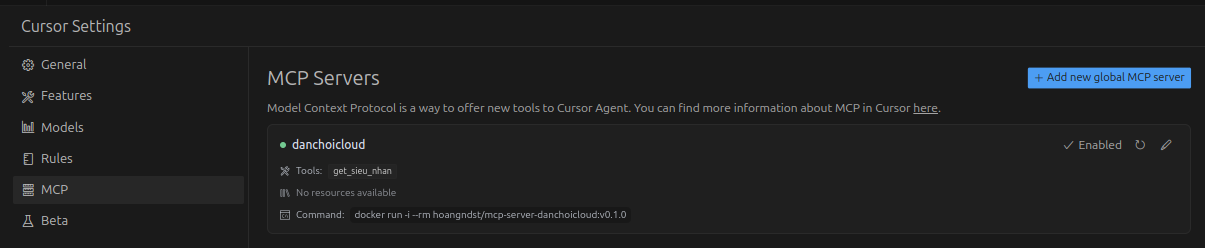
### 4.2. With [Cursor](https://www.cursor.com/)
<div style={{ textAlign: "center" }}>
    <img
        id="figure-4"
        src="/static/blog/model-context-protocol/4.png"
        alt="Testing MCP server with cursor"
        style={{ width: "100%", display: "block", margin: "0 auto", borderRadius: "8px" }}
    />
    <p style={{ textAlign: "center" }}>Figure 4: Testing MCP server with cursor</p>
</div>

<details>
<summary>`/home/$USER/.cursor/mcp.json`</summary>
```json:mcp.json caption="mcp.json" showLineNumbers
{
  "mcpServers": {
    "danchoicloud": {
      "command": "docker",
      "args": ["run", "-i", "--rm", "hoangndst/mcp-server-danchoicloud:v0.1.0"]
    }
  }
}
```
</details>
### 4.3. With Claude for Desktop
Edit configuration file:

`~/.config/Claude/claude_desktop_config.json`
```json:claude_desktop_config.json caption="claude_desktop_config.json" showLineNumbers
{
    "mcpServers": {
      "danchoicloud": {
        "command": "docker",
        "args": ["run", "-i", "--rm", "hoangndst/mcp-server-danchoicloud:v0.1.0"]
      }
    }
}
```
<div style={{ textAlign: "center" }}>
    <img
        id="figure-5"
        src="/static/blog/model-context-protocol/5.png"
        alt="Testing MCP server with Claude for Desktop"
        style={{ width: "100%", display: "block", margin: "0 auto", borderRadius: "8px" }}
    />
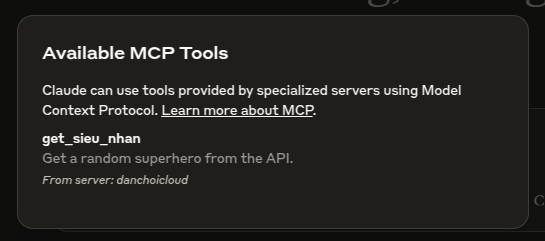
    <p style={{ textAlign: "center" }}>Figure 5: Testing MCP server with Claude for Desktop</p>
</div>

Let's test the server with the following prompt:
```text
Get me a random image of sieu nhan.
``` 
<div style={{ textAlign: "center" }}>
    <img
        id="figure-6"
        src="/static/blog/model-context-protocol/6.png"
        alt="Testing MCP server with Claude for Desktop"
        style={{ width: "100%", display: "block", margin: "0 auto", borderRadius: "8px" }}
    />
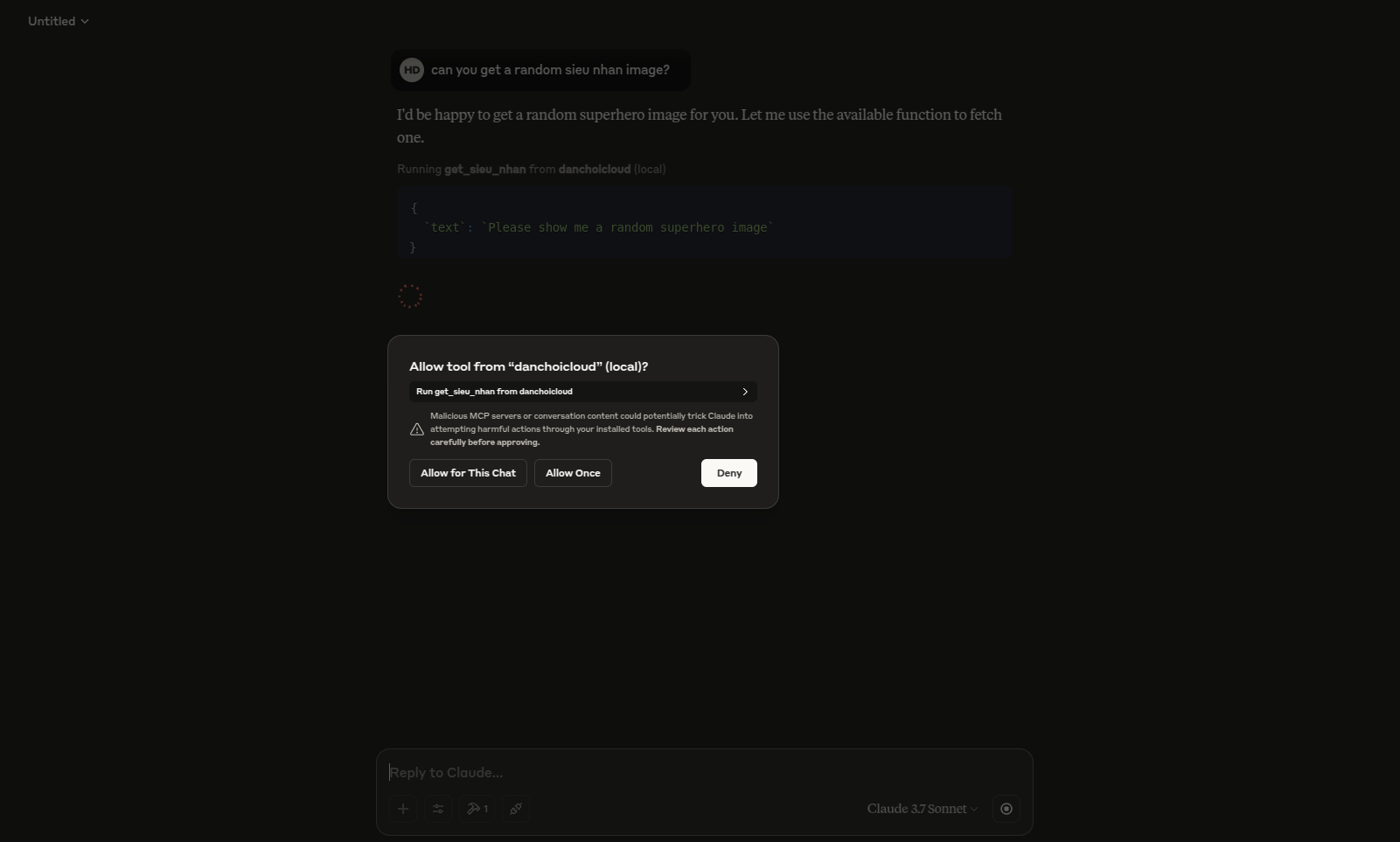
    <p style={{ textAlign: "center" }}>Figure 6: Testing MCP server with Claude for Desktop</p>
</div>

We need to approve the tool call.
<div style={{ textAlign: "center" }}>
    <img
        id="figure-7"
        src="/static/blog/model-context-protocol/7.png"
        alt="Result from `get_sieu_nhan` from danchoicloud local server"
        style={{ width: "100%", display: "block", margin: "0 auto", borderRadius: "8px" }}
    />
    <p style={{ textAlign: "center" }}>Figure 7: Result from `get_sieu_nhan` from `danchoicloud` local server</p>
</div>

What’s happening under the hood. When you ask a question:
1. The client sends your question to Claude
2. Claude analyzes the available tools and decides which one(s) to use
3. The client executes the chosen tool(s) through the MCP server
4. The results are sent back to Claude
5. Claude formulates a natural language response
6. The response is displayed to you!

## Conclusion
The Model Context Protocol (MCP) is a powerful tool for developers looking to integrate AI models into their applications.
By providing a standardized way to connect AI models to different data sources and tools, MCP simplifies the process of building AI-powered applications.

This article has provided an overview of the MCP architecture, server development, and how to test your server with different MCP hosts.
With the MCP, developers can focus on building innovative applications without worrying about the complexities of data integration.